While at work this week I accidentally discovered a useful shortcut on Microsoft Windows1. When you have applications pinned to your taskbar you can swap between them using Super (Windows key) + 1, 2, 3… to open your first, second, third, etc. pinned apps. It will swap the active window to the application or open a new window if it is not running.
This is exciting because it allows me to reuse muscle memory from my sway setup on Debian. In sway Super + 1, 2, 3… moves you between virtual desktops. Since I almost always have web browser on 1 and Emacs on 2 I can easily recreate the same experience by pinning my web browser first and Emacs second.
Strange Issues Launching Emacs from Taskbar
After pinning Emacs to my taskbar I noticed some odd behaviors the next time I launched it. Depending on how it was pinned launching Emacs from the taskbar would either:
- Open a new Emacs instance separate from the pinned icon on the taskbar. (This breaks the Super+2 as it opens a new Emacs instance every time instead of switching to the open window)
Open Emacs with an empty CMD prompt window that cannot be closed without closing Emacs.
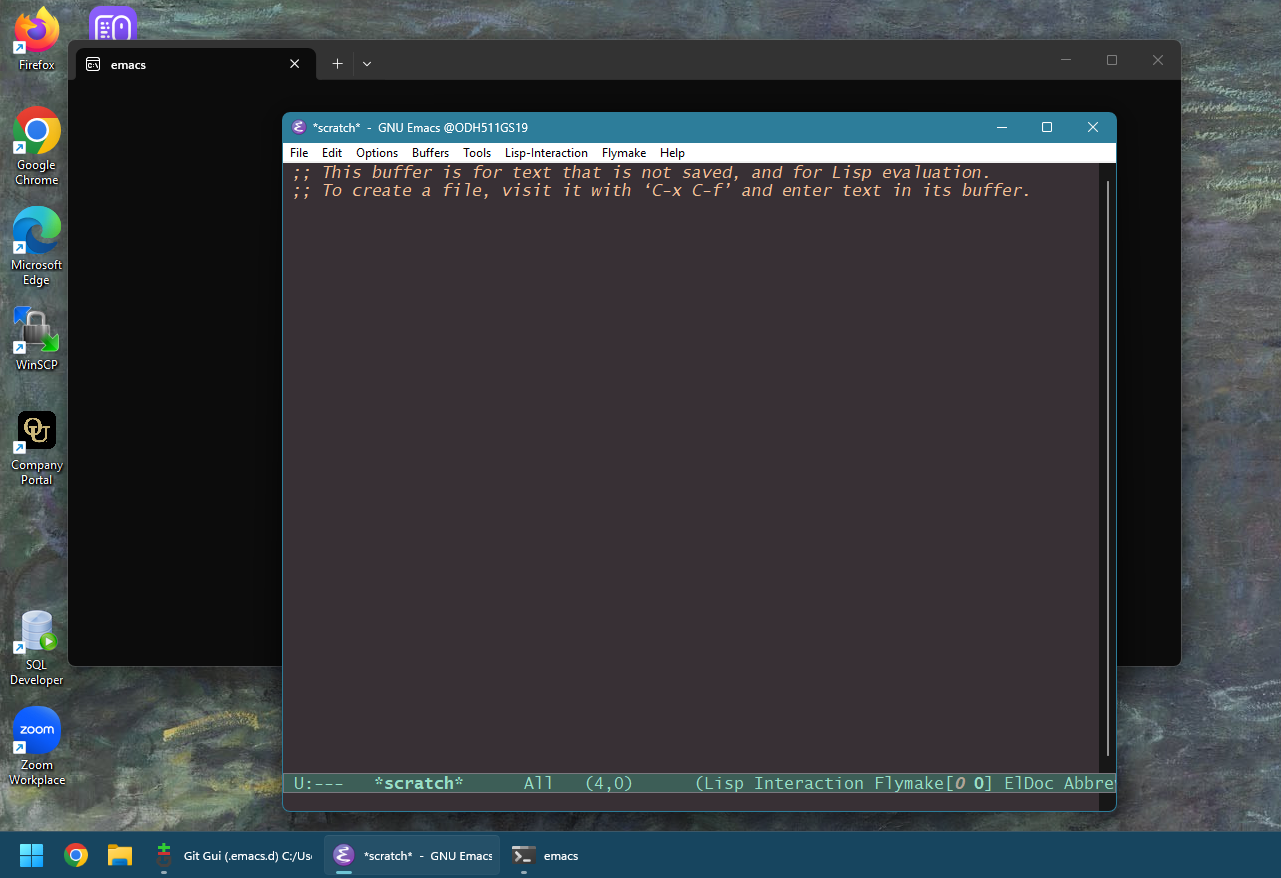
I wasn't seeing either of these issues before pinning Emacs to the taskbar.
Background on Emacs Executables on MS Windows
My normal setup on Windows is to create a shortcut to the Emacs executable, add it to my desktop and pin it to the Start menu. Once added to the Start menu I can click the Super key and search Emacs to launch it quickly. If you've looked at the Emacs program files you'll know it provides several executables to choose from.
emacs.exeemacs-30.2.exeemacsclientw.exerunemacs.exe
To run Emacs in a new window without any CMD windows opening you need to use the runemacs.exe, so that is the executable I normally create my shortcut from.
Fixing the Issue with Semi-Hidden Properties Settings
I believe issue was related to this executable difference. Once Emacs
is running it is identified as emacs.exe. I assume runemacs.exe
is ultimately just calling emacs.exe with some preconfigured
options. This difference in name seems to confuse the taskbar
grouping.
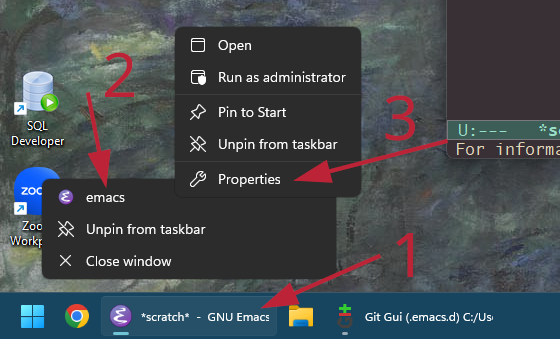
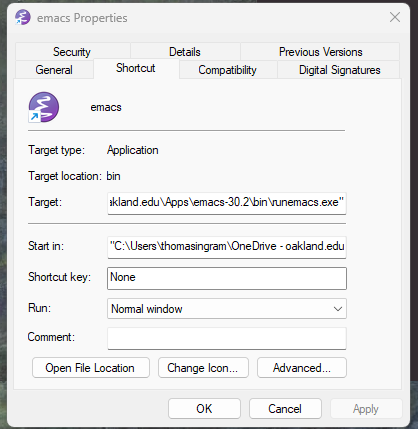
Reddit user stannis_baratheon_1 offered a fix. You need to edit the taskbar launcher's properties by right-clicking the icon, then right-clicking a smaller icon that pops up, which then shows the "Properties" option.
- Unpin Emacs from taskbar.
- Run
runemacs.exeor a shortcut to it. - Pin running Emacs to taskbar.
- Right-click on pinned Emacs Icon.
- Right-click on Emacs icon in the menu.
- Click "Edit Properties".
- Change the Application path from "
emacs.exe" to "runemacs.exe". - Apply changes.
Once finished test to see if Emacs opens correctly when launched from the taskbar. For me this has resolved my issues and I can now swap quickly between my web browser (Super + 1) and Emacs (Super + 2).
Footnotes:
Unfortunately, work requires me to use a MS Windows machine. Every night I pray to Saint IGNUcius for absolution.
Comments
Email comments to comment@taingram.org.